
Seenlio not finding an image? Check these things first
By Priyanshu Urmaliya · 4 min read
The short answer
Confirm the original file is local and in an accessible watched folder. Then check model setup, indexing and filters. Use Text for readable words and Visual for an English description of the image.
You know the picture is there. You saw it yesterday. Before trying ten variations of the same search, walk backwards through the path an image takes to become a result. Usually there is a more useful question than “Why can’t it find it?”
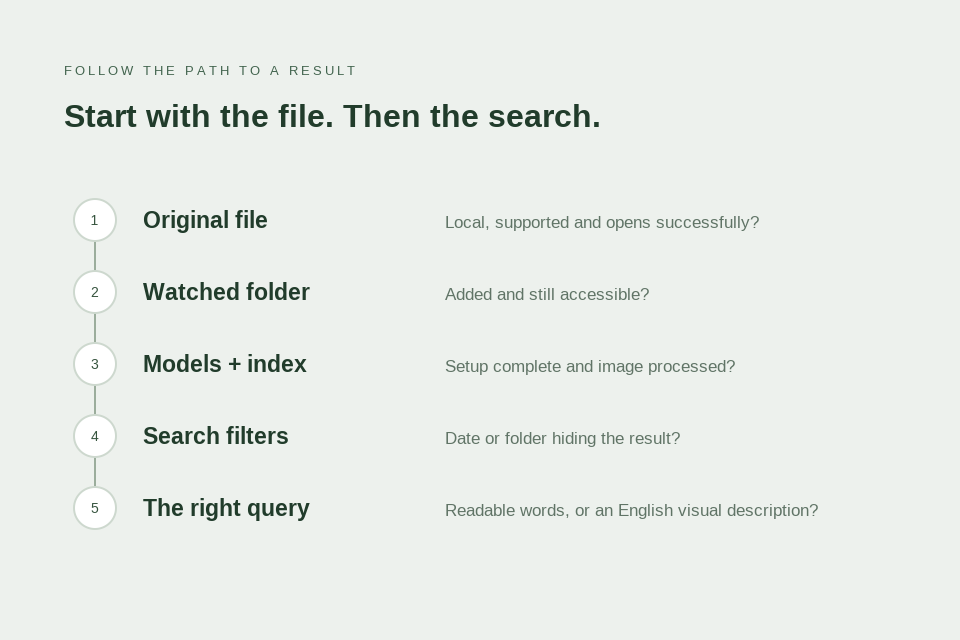
1. Can your Mac open the original?
Find the file in Finder and open it. If it is only a cloud placeholder, download the original. If it lives on an external drive, connect the drive. An unavailable file cannot be recognized just because its name is visible.
Check the format too. Seenlio reads PNG, JPEG, HEIC, WebP, GIF, TIFF, BMP and PDF files. Videos and other formats need a different workflow. Seenlio does not recover a deleted original.
2. Has Seenlio been able to read it?
Check that the folder is watched and still accessible. Complete model setup, then inspect indexing progress. If recognition is paused, resume it when you are ready. A recently added image may simply not have been processed yet.
Search an older image from the same folder. If that appears, the issue may be specific to the new file or its indexing state. If neither appears, focus on folder access and setup before rewriting the query.
3. Is the search looking in the right place?
Clear any date or folder filters and try again. Then choose the right mode. Text looks for recognized words; Visual uses a description of what an image shows. All searches both types of content.
For a screenshot, try one distinctive, clearly printed word. For a photo, describe the subject or setting in English. A visually similar scene may rank near the image you want; inspect the results instead of expecting an exact textual match.
4. Does the image contain a strong enough clue?
Small text, motion blur, low contrast and unusual fonts can reduce recognition quality. OCR support for a language does not guarantee every line will be read. If possible, use a clearer source image.
When you ask for help, note the file format, search mode, query, model status and whether other files in the same folder appear. You can usually explain the problem without sharing a private image. The getting-started guide covers setup and the privacy policy explains local processing.