
A simpler way to organize image references on your Mac
By Priyanshu Urmaliya · 4 min read
The short answer
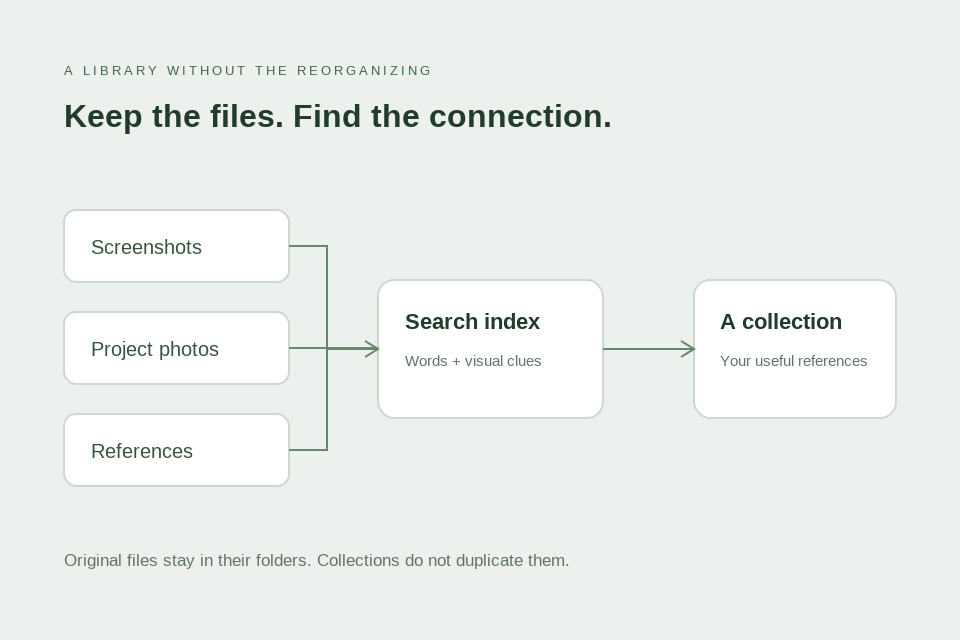
Start with a small set of useful folders. Add them to Seenlio, search their contents, and use favourites or project collections for references you return to. Collections do not move or duplicate your original files.
A project begins with three references. A week later there are forty screenshots, a Downloads folder full of photos and a file called final-reference-2. The solution does not have to be a weekend spent renaming everything.
1. Pick a useful corner of the library
Begin with one folder you use often: screenshots, design references or a current project. Add it in Seenlio and finish model setup. Let the images index before judging the results.
You do not need to move everything into a new folder system. Seenlio includes subfolders of a watched folder and leaves originals in place. Keep the files accessible, especially if they live on an external drive or in a cloud folder.
2. Search before you sort
Try retrieving a reference using the clue you would naturally remember. For a screenshot, search the words in Text mode. For a photograph, choose Visual and describe its subject or setting in English.
This reveals what is worth organizing. A reference that you use every week deserves a shortcut. A one-off image may be fine where it is, as long as it is indexed and easy to retrieve.
3. Keep the keepers close
Mark frequently used images as favourites. Use tags and collections to group references by project or idea—“Kitchen redesign” is usually more useful than a catch-all collection called “Interesting.”
Collections point to your files; they do not create a second copy of each image. Keep that distinction in mind before moving or deleting originals in Finder. A collection is an organizational view, not a backup.
4. Make retrieval part of the work
While Seenlio is running, Option–Shift–Space opens quick search. Find the reference, preview it, then copy the image or open the original. If another app uses the same shortcut, change it in Settings.
At the end of a project, review what you actually used. Keep useful references in a collection and leave the source folders intact. A small habit of saving and retrieving beats a complicated filing system you stop using.